IDE Integration
Two IDE extensions support DSM development with syntax highlighting, validation, and code completion.
IDE |
Extension |
Strengths |
|---|---|---|
VS Code |
|
Lightweight, snippets, problem matcher |
JetBrains |
DSM Language |
Full IDE: completion, navigation, refactoring |
VS Code Extension
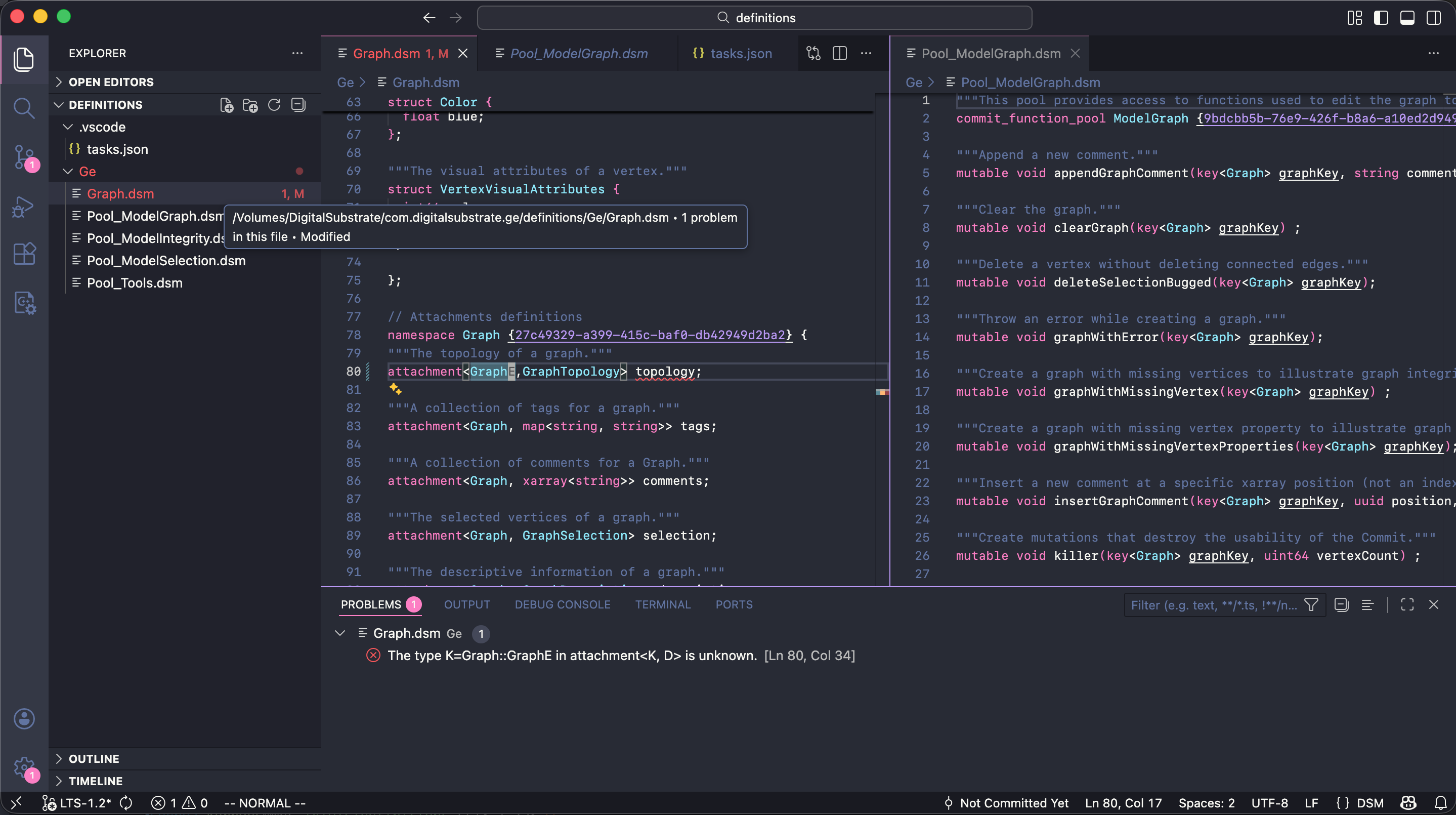
VS Code with DSM syntax highlighting and problem matcher.
Installation
The VS Code extension is published on the VS Code Marketplace.
Open Visual Studio Code
Open the Extensions view:
Cmd+Shift+X(macOS) orCtrl+Shift+X(Windows/Linux)Search for DSM Syntax Highlighter (publisher: DigitalSubstrate)
Click Install
Alternatively, install from the command line:
code --install-extension DigitalSubstrate.ds-dsm
Source repository: github.com/digital-substrate/dsm-vscode.
Syntax Highlighting
The extension highlights:
Keywords (
namespace,concept,struct,attachment)Types (
string,int64,vector<T>)UUIDs, comments, docstrings
Snippets
Type a prefix and press Tab to expand:
Structures:
Prefix |
Expansion |
|---|---|
|
Namespace with UUID placeholder |
|
|
|
Structure template |
|
Enumeration template |
|
|
|
Function pool with UUID |
|
Attachment function pool |
Types:
Prefix |
Expansion |
|---|---|
|
|
|
|
|
|
|
|
|
|
Advanced:
Prefix |
Expansion |
|---|---|
|
|
|
|
|
Mutable function with docstring |
Build Task Configuration
Create .vscode/tasks.json to enable syntax checking on build:
{
  "version": "2.0.0",
  "tasks": [
    {
      "label": "Check DSM Syntax",
      "type": "shell",
      "command": "python",
      "args": [
        "../tools/dsm_util.py",
        "check",
        "${file}"
      ],
      "presentation": {
        "reveal": "never",
        "revealProblems": "onProblem"
      },
      "problemMatcher": "$dsm",
      "group": {
        "kind": "build",
        "isDefault": true
      }
    }
  ]
}
Using the Build Task
Press
Cmd+Shift+B(macOS) orCtrl+Shift+B(Windows/Linux)Errors appear in the Problems panel with click-to-navigate
Optional: Theme Customization
Dracula Theme (Recommended)
Open Command Palette
Run:
Browse Color Theme in MarketPlaceSelect:
Dracula
Token Customization
Add to your settings.json:
{
  "editor.tokenColorCustomizations": {
    "textMateRules": [
      {
        "scope": "variable.key.dsm",
        "settings": {
          "fontStyle": "underline"
        }
      },
      {
        "scope": "constant.uuid.dsm",
        "settings": {
          "fontStyle": "underline"
        }
      },
      {
        "scope": "constant.enum.dsm",
        "settings": {
          "fontStyle": "italic"
        }
      }
    ]
  }
}
This customization:
Underlines key types
Underlines UUIDs
Italicizes enum cases
JetBrains Plugin
For IntelliJ IDEA, CLion, PyCharm, and other JetBrains IDEs.
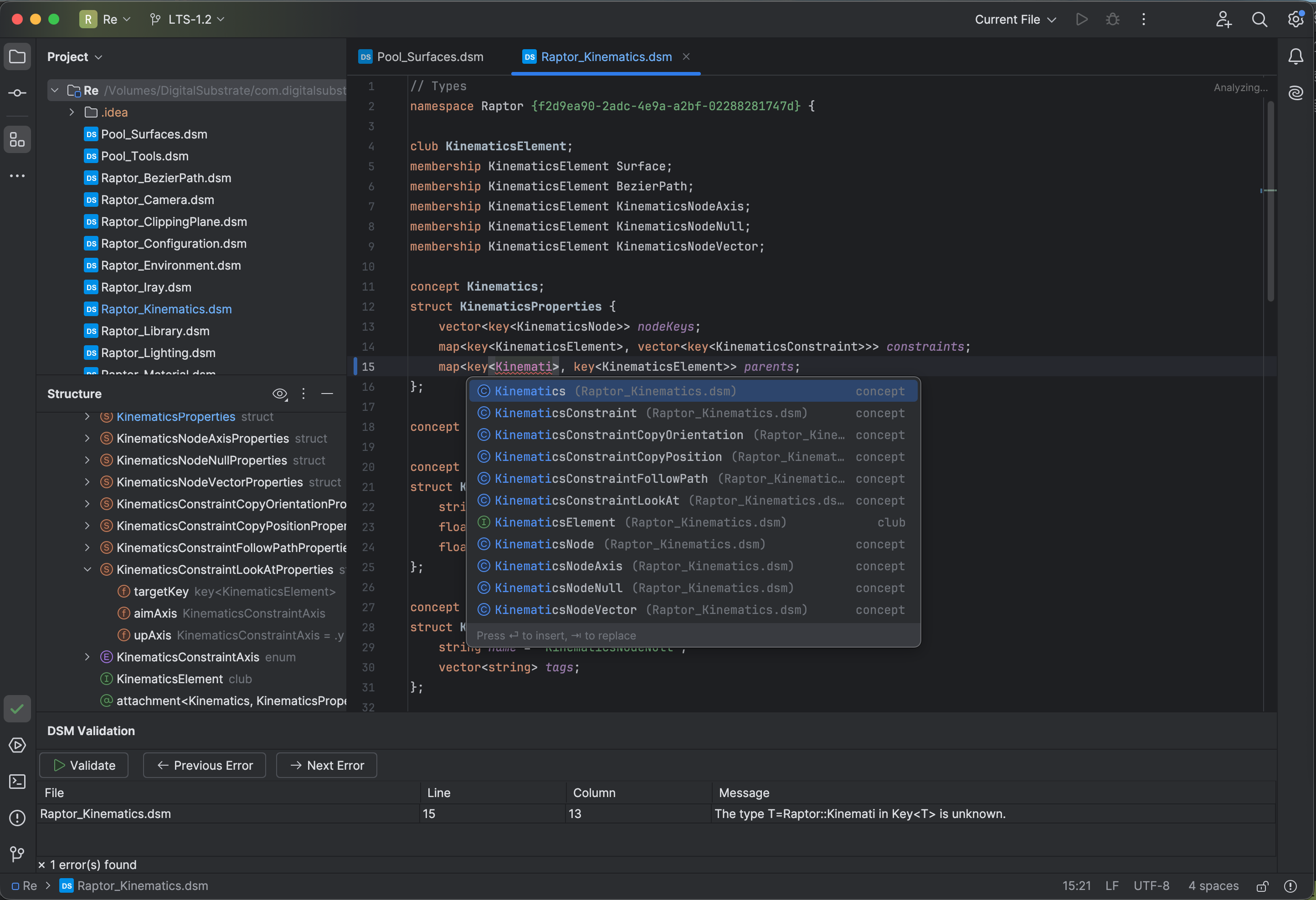
JetBrains plugin showing syntax highlighting, code completion, Structure view, and DSM Validation panel.
Installation
The JetBrains plugin is published on the JetBrains Marketplace.
Open your JetBrains IDE (IntelliJ IDEA, PyCharm, CLion, etc.)
Go to:
Settings/Preferences > Plugins > MarketplaceSearch for DSM (publisher: Digital Substrate)
Click Install
Restart the IDE when prompted
Source repository: github.com/digital-substrate/dsm-jetbrains.
Key Features for DSM Development
Context-Aware Completion:
The plugin suggests different types based on cursor position:
Inside
attachment<▸>→ suggests concepts and clubs onlyInside
attachment<Graph, ▸>→ suggests all types (structs, primitives)Inside
key<▸>→ suggests concepts only (not structs)
Navigation:
Action |
macOS |
Windows/Linux |
|---|---|---|
Go to Definition |
|
|
Find Usages |
|
|
Go to Symbol |
|
|
Validation:
Action |
Shortcut |
|---|---|
Validate DSM |
|
Next Error |
|
Previous Error |
|
Refactoring:
Rename (
Shift+F6): Renames across all filesReformat (
Cmd+Alt+L/Ctrl+Alt+L): Consistent formatting
Development Workflow
The typical DSM development cycle:
Write DSM  →  Validate  →  Fix Errors  →  Generate Code
   │            │             │              │
   ▼            ▼             ▼              ▼
 IDE        Cmd+Shift+B    Click error    generate.py
 Snippets   or Ctrl+Alt+V  to navigate    or dsm_util.py
Project Structure
my_project/
├── definitions/
│   ├── Model.dsm
│   └── Pools.dsm
├── src/generated/      # Kibo output (C++)
├── python/mymodel/     # Kibo output (Python)
└── generate.py         # Code generation script